自定义 HTML 组件
在大屏里拖一个「自定义HTML」组件,写一段普通 HTML/CSS/JS 即可获得:接收数据集数据、点击触发联动/钻取、按 id 操控其他组件(隐藏/移动/改尺寸/改配置)。 iframe 与主页面安全隔离,主页面 token/Cookie 不会泄漏给 HTML 内代码。
本文分两部分:基础篇 适合第一次使用的用户,讲怎么写适配大屏的 HTML;高级篇 讲 JLink API 与数据驱动、组件联动。新手建议从基础篇看起。
基础篇
基础篇示例都是零数据依赖:写好一段 HTML/CSS/JS 就能直接看到效果,不需要绑数据集、不需要与其他组件联动。想要数据驱动 / 联动 / 操控其他组件,请直接看下方「高级篇」。
示例 1:赛博朋克霓虹标题
效果:青色霓虹文字 + 紫红色 glitch 错位阴影 + 呼吸式光晕脉冲,四角带 L 形装饰边框,下方扫光横条来回流动。适合放大屏顶部主标题位。
HTML 代码
<!doctype html>
<html lang="zh-CN">
  <head>
    <meta charset="UTF-8" />
    <style>
      * { margin: 0; padding: 0; box-sizing: border-box; }
      body {
        background: transparent;
        font-family: 'Orbitron', 'Microsoft YaHei', sans-serif;
        height: 100vh;
        display: flex;
        align-items: center;
        justify-content: center;
        overflow: hidden;
      }
      .frame { position: relative; padding: 26px 70px; }
      .frame::before,
      .frame::after {
        content: '';
        position: absolute;
        width: 36px;
        height: 36px;
        border: 2px solid #00f2fe;
        box-shadow: 0 0 12px rgba(0, 242, 254, 0.7);
      }
      .frame::before { top: 0; left: 0; border-right: none; border-bottom: none; }
      .frame::after  { bottom: 2px; right: 0; border-left: none; border-top: none; }
      .title {
        position: relative;
        font-size: 56px;
        font-weight: 900;
        letter-spacing: 14px;
        color: #fff;
        text-shadow:
          0 0 12px rgba(0, 242, 254, 1),
          0 0 24px rgba(0, 242, 254, 0.7),
          0 0 48px rgba(0, 242, 254, 0.4);
        animation: pulse 2s ease-in-out infinite;
      }
      .title::before {
        content: attr(data-text);
        position: absolute;
        top: 0; left: 0;
        color: #ff00de;
        opacity: 0.55;
        z-index: -1;
        animation: glitch 3.2s infinite;
      }
      .line {
        margin: 16px auto 0;
        height: 2px;
        width: 60%;
        background: linear-gradient(90deg, transparent, #00f2fe 50%, transparent);
        background-size: 200% 100%;
        animation: sweep 2.4s linear infinite;
      }
      @keyframes pulse {
        0%, 100% { text-shadow: 0 0 12px rgba(0,242,254,1), 0 0 24px rgba(0,242,254,0.7), 0 0 48px rgba(0,242,254,0.4); }
        50%      { text-shadow: 0 0 22px rgba(0,242,254,1), 0 0 44px rgba(0,242,254,0.9), 0 0 68px rgba(0,242,254,0.6); }
      }
      @keyframes glitch {
        0%, 100% { transform: translate(0, 0); }
        20%      { transform: translate(-2px, 1px); }
        40%      { transform: translate(2px, -1px); }
        60%      { transform: translate(-1px, 2px); }
        80%      { transform: translate(1px, -2px); }
      }
      @keyframes sweep {
        0%   { background-position: 200% 0; }
        100% { background-position: -200% 0; }
      }
    </style>
  </head>
  <body>
    <div class="frame">
      <div class="title" data-text="智 慧 城 市">智 慧 城 市</div>
      <div class="line"></div>
    </div>
  </body>
</html>
示例 2:HUD 圆形仪表盘组
效果:3 个 SVG 圆环仪表盘并排排列(青/绿/橙三色),数值从 0 缓动到目标值(78%、62%、35%),环外有一圈刻度,中间是大字号百分比 + 指标名(CPU / 内存 / 磁盘)。每 5 秒重置回 0 再涨起来。适合放在运维监控类大屏。
HTML 代码
<!doctype html>
<html lang="zh-CN">
  <head>
    <meta charset="UTF-8" />
    <style>
      * { margin: 0; padding: 0; box-sizing: border-box; }
      body {
        background: transparent;
        font-family: 'Microsoft YaHei', sans-serif;
        color: #fff;
        height: 100vh;
        display: flex;
        align-items: center;
        justify-content: center;
        gap: 60px;
      }
      .gauge { position: relative; width: 200px; height: 200px; }
      .gauge svg { width: 100%; height: 100%; transform: rotate(-90deg); }
      .track { fill: none; stroke: rgba(255, 255, 255, 0.08); stroke-width: 12; }
      .bar {
        fill: none;
        stroke-width: 12;
        stroke-linecap: round;
        filter: drop-shadow(0 0 6px currentColor);
      }
      .ticks {
        position: absolute;
        inset: 14px;
        border-radius: 50%;
        background: repeating-conic-gradient(rgba(255, 255, 255, 0.35) 0deg 1deg, transparent 1deg 15deg);
        -webkit-mask: radial-gradient(circle, transparent 0 72px, black 72px 80px, transparent 82px);
        mask: radial-gradient(circle, transparent 0 72px, black 72px 80px, transparent 82px);
      }
      .text {
        position: absolute;
        inset: 0;
        display: flex;
        flex-direction: column;
        align-items: center;
        justify-content: center;
      }
      .pct {
        font-family: 'Consolas', monospace;
        font-size: 38px;
        font-weight: 900;
        text-shadow: 0 0 12px currentColor;
      }
      .name {
        margin-top: 6px;
        font-size: 12px;
        letter-spacing: 6px;
        color: rgba(255, 255, 255, 0.6);
      }
    </style>
  </head>
  <body>
    <div class="gauge" data-target="78" style="color:#00f2fe">
      <svg viewBox="0 0 200 200">
        <circle class="track" cx="100" cy="100" r="80"/>
        <circle class="bar" cx="100" cy="100" r="80" stroke="currentColor"
                stroke-dasharray="502.6" stroke-dashoffset="502.6"/>
      </svg>
      <div class="ticks"></div>
      <div class="text">
        <div class="pct" style="color:#00f2fe">0%</div>
        <div class="name">C P U</div>
      </div>
    </div>
    <div class="gauge" data-target="62" style="color:#50c8a0">
      <svg viewBox="0 0 200 200">
        <circle class="track" cx="100" cy="100" r="80"/>
        <circle class="bar" cx="100" cy="100" r="80" stroke="currentColor"
                stroke-dasharray="502.6" stroke-dashoffset="502.6"/>
      </svg>
      <div class="ticks"></div>
      <div class="text">
        <div class="pct" style="color:#50c8a0">0%</div>
        <div class="name">内 存</div>
      </div>
    </div>
    <div class="gauge" data-target="35" style="color:#ffa050">
      <svg viewBox="0 0 200 200">
        <circle class="track" cx="100" cy="100" r="80"/>
        <circle class="bar" cx="100" cy="100" r="80" stroke="currentColor"
                stroke-dasharray="502.6" stroke-dashoffset="502.6"/>
      </svg>
      <div class="ticks"></div>
      <div class="text">
        <div class="pct" style="color:#ffa050">0%</div>
        <div class="name">磁 盘</div>
      </div>
    </div>
    <script>
      var CIRC = 502.6; // 2 * PI * 80
      function run() {
        document.querySelectorAll('.gauge').forEach(function (g) {
          var target = +g.dataset.target;
          var bar = g.querySelector('.bar');
          var pct = g.querySelector('.pct');
          var start = performance.now();
          var dur = 2000;
          (function tick() {
            var p = Math.min(1, (performance.now() - start) / dur);
            var e = 1 - Math.pow(1 - p, 3);
            var cur = target * e;
            bar.setAttribute('stroke-dashoffset', CIRC * (1 - cur / 100));
            pct.textContent = Math.round(cur) + '%';
            if (p < 1) requestAnimationFrame(tick);
          })();
        });
      }
      run();
      setInterval(run, 5000);
    </script>
  </body>
</html>
示例 3:3D 线框旋转地球
效果:纯 CSS 3D 实现的线框地球:6 条经线 + 5 条纬线在 3D 空间组合成球体,整体以 16 秒/圈缓慢自转,球面上贴 4 个不同颜色的数据点(始终跟着地球旋转),外缘有一圈青色光晕。常用作"全球数据"主题的视觉中心。
HTML 代码
<!doctype html>
<html lang="zh-CN">
  <head>
    <meta charset="UTF-8" />
    <style>
      * { margin: 0; padding: 0; box-sizing: border-box; }
      body {
        background: transparent;
        font-family: 'Microsoft YaHei', sans-serif;
        color: #fff;
        height: 100vh;
        display: flex;
        align-items: center;
        justify-content: center;
        overflow: hidden;
        perspective: 1400px;
      }
      .scene { position: relative; width: 320px; height: 320px; }
      .glow {
        position: absolute;
        inset: -40px;
        border-radius: 50%;
        background: radial-gradient(circle, rgba(0, 242, 254, 0.22), transparent 70%);
        z-index: -1;
      }
      .globe {
        position: relative;
        width: 100%;
        height: 100%;
        transform-style: preserve-3d;
        animation: spin 16s linear infinite;
      }
      .ring {
        position: absolute;
        inset: 0;
        border: 1px solid rgba(0, 242, 254, 0.5);
        border-radius: 50%;
        box-shadow: 0 0 10px rgba(0, 242, 254, 0.15) inset;
      }
      /* 经线 */
      .m1 { transform: rotateY(0deg);   }
      .m2 { transform: rotateY(30deg);  }
      .m3 { transform: rotateY(60deg);  }
      .m4 { transform: rotateY(90deg);  }
      .m5 { transform: rotateY(120deg); }
      .m6 { transform: rotateY(150deg); }
      /* 纬线(赤道 + 南北各 2 圈) */
      .p1 { transform: rotateX(90deg); }
      .p2 { transform: rotateX(90deg) translateZ(80px)  scale(0.866); }
      .p3 { transform: rotateX(90deg) translateZ(139px) scale(0.5); }
      .p4 { transform: rotateX(90deg) translateZ(-80px) scale(0.866); }
      .p5 { transform: rotateX(90deg) translateZ(-139px) scale(0.5); }
      /* 数据点(球面坐标) */
      .pin {
        position: absolute;
        top: 50%; left: 50%;
        width: 10px; height: 10px;
        margin: -5px 0 0 -5px;
        border-radius: 50%;
      }
      .pin1 { transform: rotateY(20deg)  rotateX(-30deg) translateZ(160px); background: #ffeb3b; box-shadow: 0 0 14px #ffeb3b; }
      .pin2 { transform: rotateY(-50deg) rotateX(15deg)  translateZ(160px); background: #ff5d5d; box-shadow: 0 0 14px #ff5d5d; }
      .pin3 { transform: rotateY(110deg) rotateX(-10deg) translateZ(160px); background: #50c8a0; box-shadow: 0 0 14px #50c8a0; }
      .pin4 { transform: rotateY(220deg) rotateX(20deg)  translateZ(160px); background: #ff8c50; box-shadow: 0 0 14px #ff8c50; }
      .label {
        position: absolute;
        bottom: -54px;
        left: 0; right: 0;
        text-align: center;
        font-size: 13px;
        letter-spacing: 6px;
        color: rgba(0, 242, 254, 0.85);
        text-shadow: 0 0 8px rgba(0, 242, 254, 0.6);
      }
      @keyframes spin {
        from { transform: rotateX(-18deg) rotateY(0deg); }
        to   { transform: rotateX(-18deg) rotateY(360deg); }
      }
    </style>
  </head>
  <body>
    <div class="scene">
      <div class="glow"></div>
      <div class="globe">
        <div class="ring m1"></div>
        <div class="ring m2"></div>
        <div class="ring m3"></div>
        <div class="ring m4"></div>
        <div class="ring m5"></div>
        <div class="ring m6"></div>
        <div class="ring p1"></div>
        <div class="ring p2"></div>
        <div class="ring p3"></div>
        <div class="ring p4"></div>
        <div class="ring p5"></div>
        <div class="pin pin1"></div>
        <div class="pin pin2"></div>
        <div class="pin pin3"></div>
        <div class="pin pin4"></div>
      </div>
      <div class="label">GLOBAL DATA HUB</div>
    </div>
  </body>
</html>
示例 4:粒子数据网络
效果:80 个浅蓝色粒子在 canvas 里随机漂移,距离小于 130px 的粒子之间自动连线(透明度随距离淡出),形成动态的「数据节点网络」。中间叠一行「数 据 中 枢」霓虹文字。用 ResizeObserver 监听容器尺寸变化,被父页面拉伸/压缩或随大屏整体缩放时画布都会重新适配并把越界粒子拉回视区。常用作大屏背景或装饰区。
HTML 代码
<!doctype html>
<html lang="zh-CN">
  <head>
    <meta charset="UTF-8" />
    <style>
      * { margin: 0; padding: 0; box-sizing: border-box; }
      body {
        background: transparent;
        font-family: 'Microsoft YaHei', sans-serif;
        height: 100vh;
        overflow: hidden;
        position: relative;
      }
      canvas { display: block; width: 100%; height: 100%; }
      .hub {
        position: absolute;
        top: 50%; left: 50%;
        transform: translate(-50%, -50%);
        color: #fff;
        font-size: 32px;
        font-weight: bold;
        letter-spacing: 10px;
        text-shadow:
          0 0 12px rgba(100, 220, 255, 0.95),
          0 0 28px rgba(100, 220, 255, 0.65);
        pointer-events: none;
        z-index: 10;
      }
    </style>
  </head>
  <body>
    <canvas id="cv"></canvas>
    <div class="hub">数 据 中 枢</div>
    <script>
      var cv = document.getElementById('cv');
      var ctx = cv.getContext('2d');
      var ps = [];

      function resize() {
        var w = Math.max(1, Math.floor(cv.clientWidth  || window.innerWidth));
        var h = Math.max(1, Math.floor(cv.clientHeight || window.innerHeight));
        if (w === cv.width && h === cv.height) return;
        cv.width  = w;
        cv.height = h;
        // 把越界的粒子重新放进视区内
        for (var i = 0; i < ps.length; i++) {
          if (ps[i].x > w) ps[i].x = Math.random() * w;
          if (ps[i].y > h) ps[i].y = Math.random() * h;
        }
      }
      resize();

      var N = 80;
      for (var i = 0; i < N; i++) {
        ps.push({
          x: Math.random() * cv.width,
          y: Math.random() * cv.height,
          vx: (Math.random() - 0.5) * 0.6,
          vy: (Math.random() - 0.5) * 0.6,
          r: Math.random() * 2 + 1
        });
      }

      // 监听容器尺寸变化(被父页面拉伸/压缩、JLink.resize 调整时也能触发)
      if (window.ResizeObserver) {
        new ResizeObserver(resize).observe(document.body);
      } else {
        window.addEventListener('resize', resize);
      }

      function draw() {
        ctx.clearRect(0, 0, cv.width, cv.height);
        for (var i = 0; i < ps.length; i++) {
          var p = ps[i];
          p.x += p.vx; p.y += p.vy;
          if (p.x < 0 || p.x > cv.width)  p.vx *= -1;
          if (p.y < 0 || p.y > cv.height) p.vy *= -1;
          ctx.fillStyle = 'rgba(100, 220, 255, 0.85)';
          ctx.beginPath();
          ctx.arc(p.x, p.y, p.r, 0, Math.PI * 2);
          ctx.fill();
        }
        for (var i = 0; i < ps.length; i++) {
          for (var j = i + 1; j < ps.length; j++) {
            var dx = ps[i].x - ps[j].x;
            var dy = ps[i].y - ps[j].y;
            var d  = Math.sqrt(dx * dx + dy * dy);
            if (d < 130) {
              ctx.strokeStyle = 'rgba(100, 220, 255, ' + ((1 - d / 130) * 0.5).toFixed(3) + ')';
              ctx.lineWidth = 1;
              ctx.beginPath();
              ctx.moveTo(ps[i].x, ps[i].y);
              ctx.lineTo(ps[j].x, ps[j].y);
              ctx.stroke();
            }
          }
        }
        requestAnimationFrame(draw);
      }
      draw();
    </script>
  </body>
</html>
示例 5:Three.js 3D 大楼仿真
效果:六层「云顶购物中心」3D 大楼,B1 到 F5 堆叠,每层按业态色(餐饮 / 影院 / 购物 / 超市 / 儿童 / 美妆 / 生活服务)渲染霓虹立面 + 程序生成的窗口纹理 + 楼号标牌;顶部带屋脊罩和 HVAC 设备,底部漫光地坪 + 网格,门口暖色入光。环境光 + 定向光 + 双点光源补色。点击任一楼层,该层会沿对角线方向「弹出」、其它楼层半透明淡出,标牌透明度跟随高亮;再次点击同一层归位,点击别层切换。鼠标拖拽旋转 / 滚轮缩放(通过位移阈值 + 时间阈值区分点击和拖拽,不冲突)。ResizeObserver 监听容器尺寸变化自动重设相机和 renderer。需要从 CDN 加载 Three.js 0.128 + OrbitControls(约 600KB),首次加载会比前面 4 个示例慢一些。
HTML 代码
<!doctype html>
<html lang="zh-CN">
  <head>
    <meta charset="UTF-8" />
    <style>
      * { margin: 0; padding: 0; box-sizing: border-box; }
      html, body {
        width: 100%; height: 100%;
        background: transparent;
        overflow: hidden;
        font-family: 'PingFang SC', 'Microsoft YaHei', sans-serif;
        color: #cfe3f5;
      }
      #stage { position: absolute; inset: 0; }
      .title { position: absolute; top: 24px; left: 28px; z-index: 5; pointer-events: none; }
      .title h1 { font-size: 20px; font-weight: 700; letter-spacing: 2px; color: #eaf4ff; }
      .title p  { font-size: 11px; letter-spacing: 1px; color: #6b93b8; margin-top: 4px; }
      .legend {
        position: absolute;
        bottom: 20px; left: 28px;
        z-index: 5;
        display: flex; gap: 7px; align-items: center; flex-wrap: wrap;
        max-width: calc(100% - 56px);
        pointer-events: none;
      }
      .legend .lbl { font-size: 10px; color: #5f86ab; letter-spacing: 1px; }
      .legend-item {
        display: flex; align-items: center; gap: 5px;
        padding: 3px 8px;
        border-radius: 12px;
        background: rgba(8, 16, 30, 0.6);
        border: 1px solid rgba(255, 255, 255, 0.07);
        font-size: 10px;
      }
      .legend-item .dot { width: 8px; height: 8px; border-radius: 50%; }
    </style>
  </head>
  <body>
    <div id="stage"></div>
    <div class="title">
      <h1>云顶购物中心 · Three.js 大楼仿真</h1>
      <p>拖拽旋转 · 滚轮缩放 · 点击楼层查看</p>
    </div>
    <div class="legend">
      <div class="lbl">业态</div>
      <div id="legend-list" style="display:flex;gap:7px;flex-wrap:wrap;"></div>
    </div>
    <script src="https://unpkg.com/three@0.128.0/build/three.min.js"></script>
    <script src="https://unpkg.com/three@0.128.0/examples/js/controls/OrbitControls.js"></script>
    <script>
      (function () {
        var cats = {
          '餐饮美食': [242, 119, 78],
          '影院':     [139, 92, 246],
          '购物零售': [42, 143, 224],
          '超市':     [43, 182, 115],
          '儿童娱乐': [245, 197, 66],
          '美妆护肤': [236, 72, 153],
          '生活服务': [20, 184, 196]
        };
        var floors = [
          { code: 'B1', name: '超市 · 生活服务',  c: '超市' },
          { code: 'F1', name: '美妆 · 精品零售',  c: '美妆护肤' },
          { code: 'F2', name: '时尚购物',         c: '购物零售' },
          { code: 'F3', name: '亲子 · 儿童娱乐',  c: '儿童娱乐' },
          { code: 'F4', name: '餐饮美食',         c: '餐饮美食' },
          { code: 'F5', name: '影院 · 餐饮',      c: '影院' }
        ];

        var ll = document.getElementById('legend-list');
        Object.keys(cats).forEach(function (k) {
          var c = cats[k];
          var el = document.createElement('div');
          el.className = 'legend-item';
          el.innerHTML =
            '<div class="dot" style="background:rgb(' + c[0] + ',' + c[1] + ',' + c[2] +
            ');box-shadow:0 0 7px rgba(' + c[0] + ',' + c[1] + ',' + c[2] + ',0.7)"></div>' +
            '<span>' + k + '</span>';
          ll.appendChild(el);
        });

        function start() {
          if (!window.THREE || !window.THREE.OrbitControls) { setTimeout(start, 50); return; }
          var el = document.getElementById('stage');
          var W0 = el.clientWidth  || window.innerWidth;
          var H0 = el.clientHeight || window.innerHeight;

          var scene  = new THREE.Scene();
          var camera = new THREE.PerspectiveCamera(42, W0 / H0, 0.1, 4000);
          camera.position.set(95, 78, 120);

          var renderer = new THREE.WebGLRenderer({ antialias: true, alpha: true });
          renderer.setPixelRatio(Math.min(window.devicePixelRatio || 1, 2));
          renderer.setSize(W0, H0);
          el.appendChild(renderer.domElement);
          renderer.domElement.style.display = 'block';

          var controls = new THREE.OrbitControls(camera, renderer.domElement);
          controls.enableDamping = true;
          controls.dampingFactor = 0.08;
          controls.minDistance = 70;
          controls.maxDistance = 320;
          controls.maxPolarAngle = Math.PI * 0.49;
          controls.minPolarAngle = Math.PI * 0.12;
          controls.enablePan = false;
          controls.autoRotate = false;
          controls.autoRotateSpeed = 0.6;

          scene.add(new THREE.AmbientLight(0x6f93bd, 0.85));
          var dir = new THREE.DirectionalLight(0xeaf2ff, 0.95);
          dir.position.set(80, 140, 60);
          scene.add(dir);
          var p1 = new THREE.PointLight(0x3aa6e6, 0.6, 600); p1.position.set(-90, 60, 40); scene.add(p1);
          var p2 = new THREE.PointLight(0xff9a5a, 0.4, 600); p2.position.set( 60, 20, 90); scene.add(p2);

          var W = 40, D = 28, FH = 8, GAP = 2.6, N = floors.length;
          var totalH = N * (FH + GAP);
          var cx = function (rgb) { return new THREE.Color(rgb[0] / 255, rgb[1] / 255, rgb[2] / 255); };

          // 程序生成的窗口立面纹理
          function facadeTex(rgb, lit) {
            var Wt = 256, Ht = 128;
            var cv = document.createElement('canvas');
            cv.width = Wt; cv.height = Ht;
            var g = cv.getContext('2d');
            g.fillStyle = '#0a1622'; g.fillRect(0, 0, Wt, Ht);
            var cols = 10, rows = 3, pad = 6;
            var gw = (Wt - pad * (cols + 1)) / cols;
            var gh = (Ht - pad * (rows + 1)) / rows;
            for (var r = 0; r < rows; r++)
              for (var c = 0; c < cols; c++) {
                var on = Math.random() < (lit ? 0.82 : 0.5);
                var b = 0.45 + Math.random() * 0.55;
                g.fillStyle = on
                  ? 'rgba(' + Math.round(rgb[0] * b + 90) + ',' + Math.round(rgb[1] * b + 90) + ',' + Math.round(rgb[2] * b + 90) + ',' + (lit ? 0.95 : 0.6) + ')'
                  : 'rgba(20,34,52,0.9)';
                g.fillRect(pad + c * (gw + pad), pad + r * (gh + pad), gw, gh);
              }
            var t = new THREE.CanvasTexture(cv);
            t.wrapS = t.wrapT = THREE.RepeatWrapping;
            t.repeat.set(2, 1);
            return t;
          }

          // 楼号标牌(药丸形圆角矩形 + 楼层号 + 业态名)
          function labelTex(lines, rgb) {
            var cv = document.createElement('canvas');
            cv.width = 512; cv.height = 200;
            var g = cv.getContext('2d');
            var x = 8, y = 8, w = 496, h = 184, r = 34;
            g.beginPath();
            g.moveTo(x + r, y);
            g.arcTo(x + w, y,     x + w, y + h, r);
            g.arcTo(x + w, y + h, x,     y + h, r);
            g.arcTo(x,     y + h, x,     y,     r);
            g.arcTo(x,     y,     x + w, y,     r);
            g.closePath();
            g.fillStyle = 'rgba(' + rgb[0] + ',' + rgb[1] + ',' + rgb[2] + ',0.96)';
            g.fill();
            g.lineWidth = 5;
            g.strokeStyle = 'rgba(255,255,255,0.55)';
            g.stroke();
            g.fillStyle = '#fff';
            g.textAlign = 'center'; g.textBaseline = 'middle';
            g.font = '700 84px sans-serif'; g.fillText(lines[0], 256, 70);
            g.font = '600 52px "PingFang SC","Microsoft YaHei",sans-serif'; g.fillText(lines[1], 256, 142);
            return new THREE.CanvasTexture(cv);
          }

          var group = new THREE.Group();
          scene.add(group);
          var meshes = [], sprites = [];

          floors.forEach(function (f, i) {
            var rgb = cats[f.c], col = cx(rgb);
            var geo = new THREE.BoxGeometry(W, FH, D);
            var side = new THREE.MeshStandardMaterial({
              map: facadeTex(rgb, true),
              emissiveMap: facadeTex(rgb, true),
              emissive: col.clone().multiplyScalar(0.5),
              color: 0x9fb6cc, metalness: 0.35, roughness: 0.45,
              transparent: true, opacity: 1
            });
            var topm = new THREE.MeshStandardMaterial({
              color:    col.clone().multiplyScalar(0.55),
              emissive: col.clone().multiplyScalar(0.18),
              metalness: 0.4, roughness: 0.5,
              transparent: true, opacity: 1
            });
            var botm = new THREE.MeshStandardMaterial({
              color: 0x0a1420, metalness: 0.2, roughness: 0.8,
              transparent: true, opacity: 1
            });
            var mats = [side, side.clone(), topm, botm, side.clone(), side.clone()];
            var mesh = new THREE.Mesh(geo, mats);
            var baseY = FH / 2 + i * (FH + GAP);
            mesh.position.set(0, baseY, 0);
            mesh.userData = { index: i, baseY: baseY };
            group.add(mesh);
            meshes.push(mesh);

            // 楼板棱线
            var edges = new THREE.LineSegments(
              new THREE.EdgesGeometry(geo),
              new THREE.LineBasicMaterial({ color: col.clone(), transparent: true, opacity: 0.5 })
            );
            mesh.add(edges);

            // 楼号标牌(贴在楼层 +x 侧)
            var spr = new THREE.Sprite(
              new THREE.SpriteMaterial({ map: labelTex([f.code, f.name], rgb), transparent: true, depthTest: false })
            );
            spr.scale.set(25, 9.7, 1);
            spr.material.opacity = 0.7;
            spr.position.set(W / 2 + 22, baseY, 0);
            group.add(spr);
            sprites.push(spr);
          });

          // 屋脊罩 + 屋顶 HVAC 设备
          var roof = new THREE.Mesh(
            new THREE.BoxGeometry(W + 1.5, 2.4, D + 1.5),
            new THREE.MeshStandardMaterial({ color: 0x1c3a58, metalness: 0.5, roughness: 0.5 })
          );
          roof.position.set(0, totalH - GAP + 1.2, 0);
          group.add(roof);
          [[-W * 0.28, D * 0.18], [W * 0.22, -D * 0.14], [W * 0.05, 0]].forEach(function (a, k) {
            var u = new THREE.Mesh(
              new THREE.BoxGeometry(7 - k, 3.4, 5 + k),
              new THREE.MeshStandardMaterial({ color: 0x24405e, metalness: 0.5, roughness: 0.6 })
            );
            u.position.set(a[0], totalH - GAP + 3.4, a[1]);
            group.add(u);
          });

          // 漫光地坪 + 网格
          var gcv = document.createElement('canvas');
          gcv.width = gcv.height = 512;
          var gg = gcv.getContext('2d');
          var grd = gg.createRadialGradient(256, 256, 40, 256, 256, 256);
          grd.addColorStop(0, 'rgba(30,60,96,0.6)');
          grd.addColorStop(1, 'rgba(6,12,22,0)');
          gg.fillStyle = grd; gg.fillRect(0, 0, 512, 512);
          gg.strokeStyle = 'rgba(90,150,200,0.12)';
          gg.lineWidth = 1;
          for (var k = 0; k <= 16; k++) {
            var pp = k * 32;
            gg.beginPath();
            gg.moveTo(pp, 0); gg.lineTo(pp, 512);
            gg.moveTo(0, pp); gg.lineTo(512, pp);
            gg.stroke();
          }
          var ground = new THREE.Mesh(
            new THREE.PlaneGeometry(420, 420),
            new THREE.MeshBasicMaterial({ map: new THREE.CanvasTexture(gcv), transparent: true })
          );
          ground.rotation.x = -Math.PI / 2;
          scene.add(ground);

          // 大门暖色入光(饱和橙红 + 中等 emissive,避免 emissive 过曝糊成白块)
          var ent = new THREE.Mesh(
            new THREE.BoxGeometry(18, FH * 0.7, 1.2),
            new THREE.MeshStandardMaterial({
              color: 0xff8c40, emissive: 0xff5c10, emissiveIntensity: 0.7,
              metalness: 0.1, roughness: 0.5
            })
          );
          ent.position.set(0, FH * 0.35, D / 2 + 0.6);
          group.add(ent);

          controls.target.set(0, totalH * 0.45, 0);

          // 楼层选中 + 散开目标状态
          var sel = -1, EXP = 20;
          var targets = meshes.map(function (m) {
            return { x: 0, y: m.userData.baseY, z: 0, op: 1 };
          });
          function updateTargets() {
            meshes.forEach(function (m, i) {
              var t = targets[i], isSel = (i === sel);
              t.x = isSel ? EXP : 0;
              t.z = isSel ? EXP : 0;
              t.y = m.userData.baseY + (isSel ? 3 : 0);
              t.op = (sel >= 0 && !isSel) ? 0.32 : 1;
              m.material.forEach(function (mat) {
                if (mat.emissive) mat.emissiveIntensity = isSel ? 1.0 : 0.55;
              });
            });
          }

          // 拾取楼层(按下到抬起位移 <5px、时长 <400ms 视为点击,避免和拖拽旋转冲突)
          var raycaster = new THREE.Raycaster();
          var mouse = new THREE.Vector2();
          var dom = renderer.domElement;
          var down = null;
          function intersectAt(e) {
            var r = dom.getBoundingClientRect();
            mouse.x =  ((e.clientX - r.left) / r.width)  * 2 - 1;
            mouse.y = -((e.clientY - r.top)  / r.height) * 2 + 1;
            raycaster.setFromCamera(mouse, camera);
            return raycaster.intersectObjects(meshes, false);
          }
          dom.addEventListener('pointerdown', function (e) {
            down = { x: e.clientX, y: e.clientY, t: Date.now() };
          });
          dom.addEventListener('pointerup', function (e) {
            if (!down) return;
            var dx = e.clientX - down.x, dy = e.clientY - down.y;
            if (Math.hypot(dx, dy) < 5 && Date.now() - down.t < 400) {
              var hits = intersectAt(e);
              if (hits.length) {
                var idx = hits[0].object.userData.index;
                sel = (idx === sel) ? -1 : idx;
                updateTargets();
              }
            }
            down = null;
          });
          dom.addEventListener('pointermove', function (e) {
            dom.style.cursor = intersectAt(e).length ? 'pointer' : 'grab';
          });

          // 容器尺寸变化时同步相机和 renderer
          new ResizeObserver(function () {
            var w = el.clientWidth, h = el.clientHeight;
            if (w && h) {
              camera.aspect = w / h;
              camera.updateProjectionMatrix();
              renderer.setSize(w, h);
            }
          }).observe(el);

          // 动画循环:lerp 楼层位置/不透明度 + sprite 跟随楼层移动
          (function loop() {
            requestAnimationFrame(loop);
            meshes.forEach(function (m, i) {
              var t = targets[i];
              m.position.x += (t.x - m.position.x) * 0.15;
              m.position.y += (t.y - m.position.y) * 0.15;
              m.position.z += (t.z - m.position.z) * 0.15;
              m.material.forEach(function (mat) {
                if (mat.opacity !== undefined) mat.opacity += (t.op - mat.opacity) * 0.15;
              });
              var spr = sprites[i];
              spr.position.set(m.position.x + W / 2 + 22, m.position.y, m.position.z);
              var sprTarget = sel < 0 ? 0.7 : (i === sel ? 1 : 0.4);
              spr.material.opacity += (sprTarget - spr.material.opacity) * 0.15;
            });
            controls.update();
            renderer.render(scene, camera);
          })();
        }
        start();
      })();
    </script>
  </body>
</html>
高级篇
一、能力概览
「自定义HTML」组件本质是一个沙箱化 iframe(sandbox="allow-scripts"),父页面注入一个全局对象 window.JLink,HTML 内代码只需用这几个方法就能与大屏深度互动:
| 分类 | API |
|---|---|
| 数据 | JLink.onData(cb) 订阅数据集刷新(自动回放最近一次数据) |
| 交互 | JLink.linkage(payload) 触发联动 / JLink.drill(payload) 触发钻取 |
| 读其他组件 | JLink.get(id) → Promise<comp> 读取另一组件完整配置 |
| 操控其他组件 | JLink.update(id, patch) / hide / show / move / resize / setConfig |
| 操控其他组件数据 | JLink.setData(id, rows) 直接塞数据(不走数据集查询) / JLink.reload(id) 重新查询数据集 / JLink.loading(id, ms) 控制 loading 遮罩 |
| 底层入口 | JLink.emit(payload, type) 通用 type 入口(未来扩展用) |
关键区别于标准图表:自定义 HTML 不做"分组/维度/数值"字段映射 —— iframe 拿到的就是数据集 SQL 返回的原始行(字段名 = 列别名)。
二、JLink API 完整参考
数据
JLink.onData(callback)
订阅数据集刷新。回调形参为数据集返回的原始行数组。
JLink.onData(function (rows) {
  // rows 形如 [{brand:'苹果', sales:1000}, {brand:'三星', sales:5400}, ...]
  // 字段名取决于你的 SQL 列别名
  document.getElementById('root').innerHTML = rows.map(function (r) {
    return '<div>' + r.brand + ': ' + r.sales + '</div>';
  }).join('');
});
回放机制:
onData首次订阅时会自动回放最近一次数据,避免「数据先到、订阅后到」的竞态。所以不用关心 iframe 加载时机,订阅永远能拿到当前数据。
交互(联动/钻取)
JLink.linkage(payload)
触发联动,按当前组件 linkageConfig 映射 payload 字段到目标组件的查询参数。
function onCellClick(row) {
  // payload 通常传整行,让属性面板里配置的 source 可任选字段
  JLink.linkage(row);
}
JLink.drill(payload)
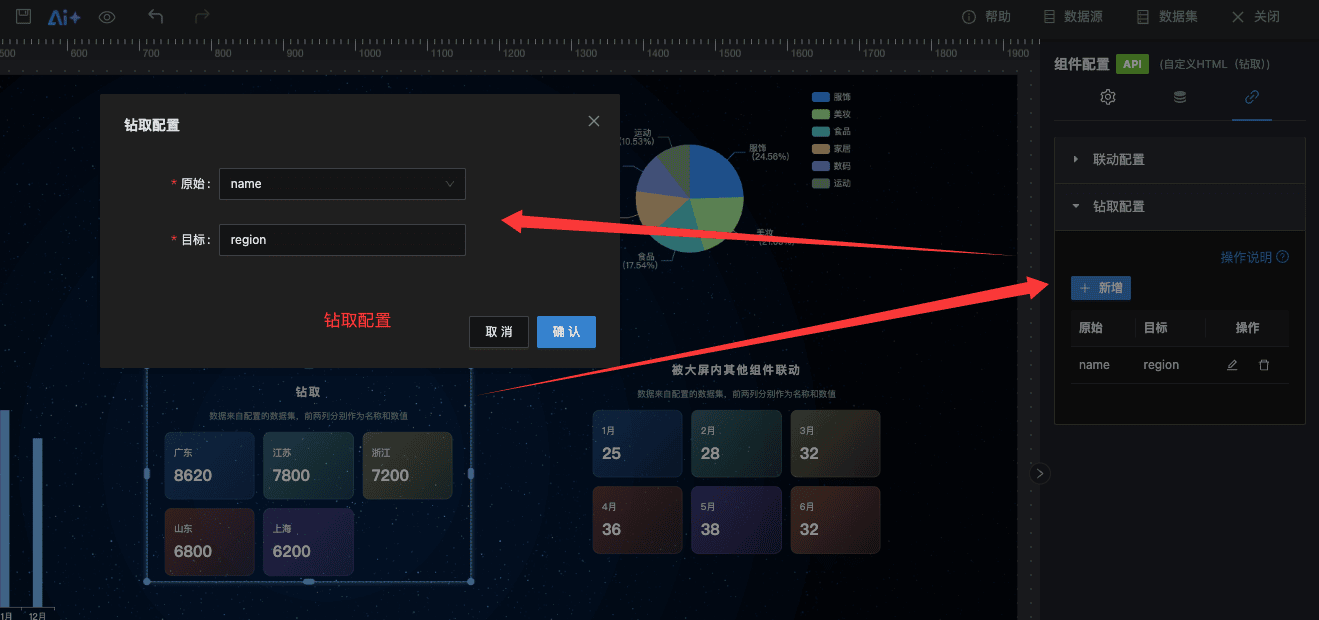
触发钻取(当前组件下钻一层),保留层级,工具栏出现「返回上一层」按钮。需要先在属性面板「钻取配置」配好 source → target 字段映射。
function onItemClick(row) {
  JLink.drill({ brand: row.brand });
}
读取其他组件
JLink.get(id) → Promise<comp>
按 id 异步读取另一个组件的完整配置。返回的是只读快照(纯对象,非响应式引用),修改它不会影响组件。
const comp = await JLink.get('1009345312659767296');
console.log(comp.i, comp.x, comp.y, comp.w, comp.h);
console.log(comp.visible, comp.config);
3 秒未响应自动 reject。常见原因:id 错、组件还没 mount 完。
操控其他组件
JLink.update(id, patch)
通用入口,一次性修改多个字段。
JLink.update(id, {
  visible: true,
  x: 100,
  y: 200,
  w: 400,
  h: 300,
  angle: 0,
  config: { /* 深合并,详见下文 */ }
});
白名单字段:visible / x / y / w / h / angle / config。其他字段会被忽略,防止误改内部状态。
JLink.update(id, {
  config: {
    option: { title: { text: '新标题' } }
  }
});
// 等价于:comp.config.option.title.text = '新标题',其他不变
语义化快捷方法
| 方法 | 等价于 |
|---|---|
JLink.hide(id) | update(id, {visible: false}) |
JLink.show(id) | update(id, {visible: true}) |
JLink.move(id, x, y) | update(id, {x, y}) |
JLink.resize(id, w, h) | update(id, {w, h}) |
JLink.setConfig(id, patch) | update(id, {config: patch}) |
示例:
const TARGET = '1009345312659767296';   // 改成你的目标组件 id

// 隐藏 / 显示
JLink.hide(TARGET);
setTimeout(() => JLink.show(TARGET), 2000);

// 移动到指定位置(像素)
JLink.move(TARGET, 100, 200);

// 改尺寸
JLink.resize(TARGET, 600, 400);

// 改标题(深合并,不影响其他配置)
JLink.setConfig(TARGET, {
  option: { title: { text: '动态标题:' + Date.now() } }
});

// 切换数据集(id 改成数据库里实际数据集 id)
JLink.setConfig(TARGET, {
  dataSetId: '1539418628472946688'
});
操控其他组件数据
JLink.setData(id, rows)
直接给目标组件塞数据,绕过数据集查询,立即重渲。
// 把示例数据塞到柱形图
JLink.setData('1009345312659767296', [
  { name: '苹果', value: 1000 },
  { name: '三星', value: 5400 },
  { name: '小米', value: 800 },
  { name: 'OPPO', value: 320 },
  { name: 'vivo', value: 10000 }
]);
与
JLink.linkage的区别:linkage 是按 source/target 字段映射触发目标组件按参数重新查询数据集(依赖 SQL/API 参数化);setData 是完全绕过数据集直接塞数据(数据可以是 iframe 内算出来的、外部传入的、写死的)。
JLink.reload(id)
让目标组件用当前配置重新查询数据集。
// 重置某个被联动过的图表回到原数据
JLink.reload('1009345312659767296');
JLink.loading(id, duration)
控制目标组件 loading 遮罩状态(a-spin 轻量遮罩,不影响 a-card 骨架屏)。常配合 setData 模拟真实接口的"先转圈再出数据"体验。
duration 取值 | 行为 |
|---|---|
true / 未传 | 持续打开,需手动调 loading(id, false) 或后续 setData / reload 关闭 |
false / 0 / 负数 | 立即关闭 |
| 正数(毫秒数) | 打开 → N ms 后自动关闭 |
const TARGET = '1009345312659767296';

// 用法 1(推荐):模拟真实接口体验,800ms 内 loading 转圈,到时间同步切数据
JLink.loading(TARGET, 800);
setTimeout(function () {
  JLink.setData(TARGET, [
    { name: '苹果', value: 1000 },
    { name: '三星', value: 5400 }
  ]);
}, 800);

// 用法 2:异步任务长流程,手动控制开关
JLink.loading(TARGET);                    // 持续打开
fetch('/api/heavy').then(function (res) {
  JLink.setData(TARGET, res.data);
  JLink.loading(TARGET, false);           // 必须显式关闭
});

// 用法 3:每张图独立随机延迟,模拟并发接口错落到达
[id1, id2, id3].forEach(function (id) {
  var delay = 500 + Math.floor(Math.random() * 800);
  JLink.loading(id, delay);
  setTimeout(function () { JLink.setData(id, dataMap[id]); }, delay);
});
常用模式:传正数 ms + 同样延迟的
setTimeout(setData, ms),"loading 转完→数据出现"在同一时刻发生。loading 自带超时机制,不依赖setData的回调,所以无需关心关闭时机。
新增 API · 旧版本不支持:调用前用
typeof JLink.loading === 'function'守卫一下,保证旧版本平台优雅降级(不报错,但看不到 loading 效果)。
通用底层入口
JLink.emit(payload, type)
type 默认 'linkage'。未来扩展新事件类型时,iframe 端用此入口,无需等新版本注入更细分的方法。
JLink.emit(row);              // 等价于 JLink.linkage(row)
JLink.emit(row, 'drill');     // 等价于 JLink.drill(row)
JLink.emit(payload, 'xxx');   // 未来新类型
三、查看组件的id
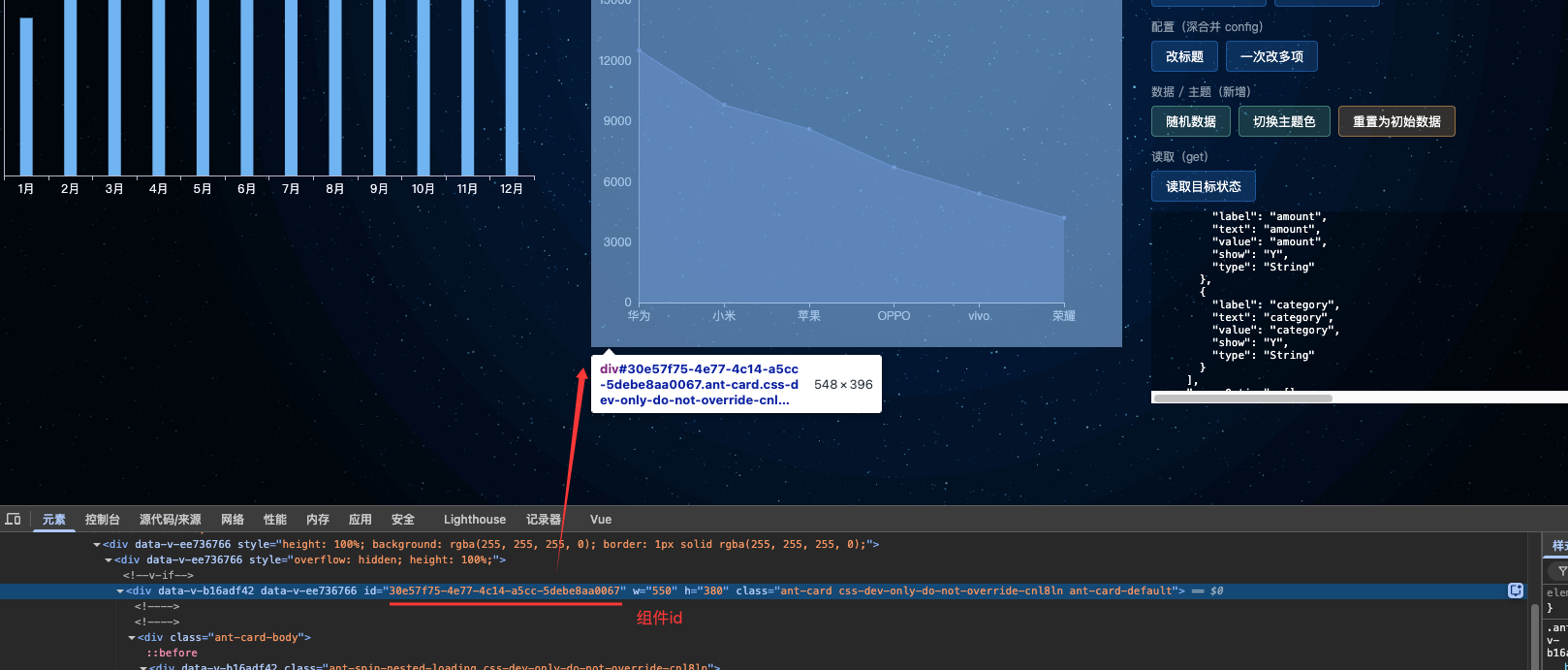 按 F12 打开开发者工具,在「元素」面板用元素选择器点选目标组件,向上查找最近一个 class 含 es-drager 的元素,其 id 属性即为组件 id。
四、完整场景示例
下面三个场景代码可直接复制到「自定义图表」配置项的「HTML 内容」编辑器里跑。
场景 1:自定义HTML 联动大屏内其他组件
效果
步骤1:
1.拖入自定义HTML组件、基础柱形图到大屏内
2.把示例代码复制到自定义HTML组件的HTML内容中
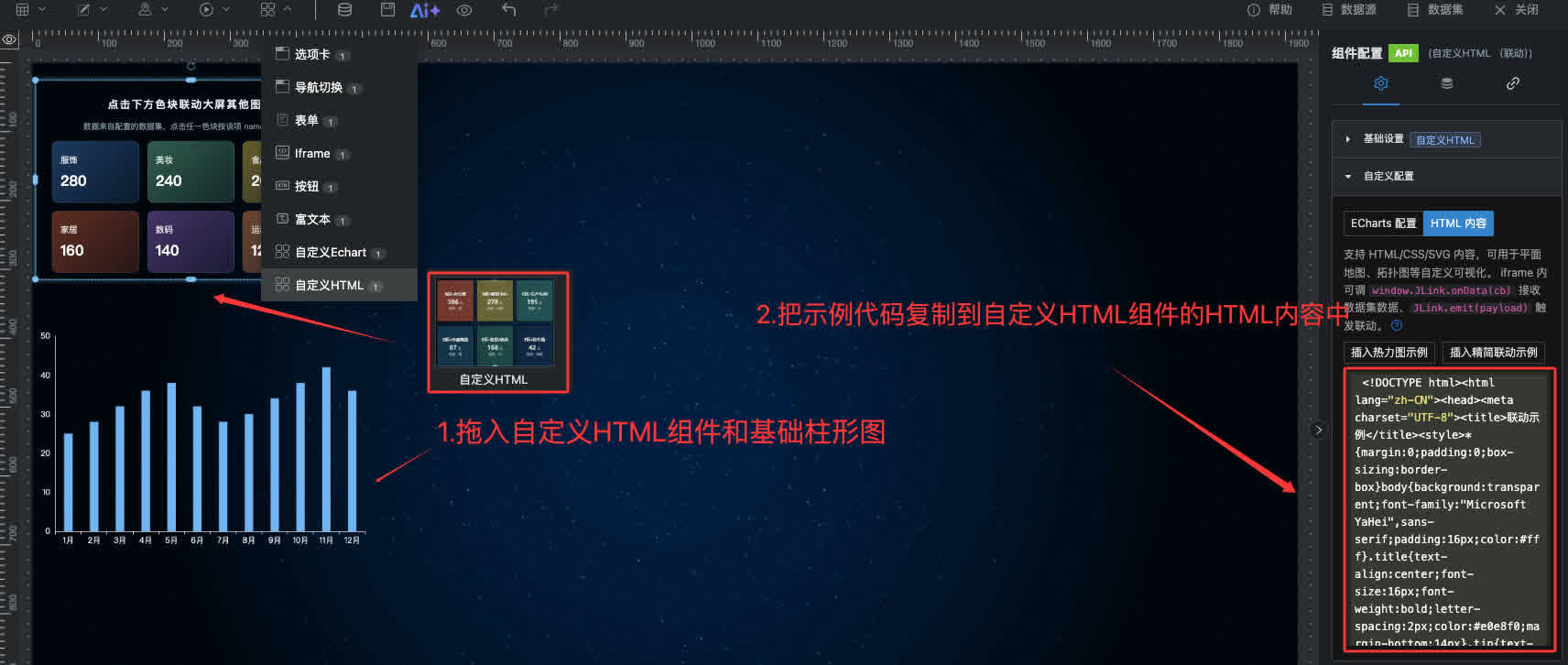
HTML代码
<!doctype html>
<html lang="zh-CN">
  <head>
    <meta charset="UTF-8" />
    <title>联动示例</title>
    <style>
      * {
        margin: 0;
        padding: 0;
        box-sizing: border-box;
      }
      body {
        background: transparent;
        font-family: 'Microsoft YaHei', sans-serif;
        padding: 16px;
        color: #fff;
      }
      .title {
        text-align: center;
        font-size: 16px;
        font-weight: bold;
        letter-spacing: 2px;
        color: #e0e8f0;
        margin-bottom: 14px;
      }
      .tip {
        text-align: center;
        font-size: 12px;
        color: #8899aa;
        margin-bottom: 14px;
      }
      .grid {
        display: grid;
        grid-template-columns: repeat(3, 1fr);
        gap: 12px;
      }
      .cell {
        position: relative;
        border-radius: 10px;
        padding: 18px 12px;
        cursor: pointer;
        transition: all 0.25s;
        border: 1px solid rgba(255, 255, 255, 0.12);
        background: linear-gradient(135deg, rgba(50, 120, 200, 0.45), rgba(50, 120, 200, 0.18));
      }
      .cell:nth-child(2) {
        background: linear-gradient(135deg, rgba(80, 200, 160, 0.45), rgba(80, 200, 160, 0.18));
      }
      .cell:nth-child(3) {
        background: linear-gradient(135deg, rgba(232, 200, 64, 0.45), rgba(232, 200, 64, 0.18));
      }
      .cell:nth-child(4) {
        background: linear-gradient(135deg, rgba(224, 80, 56, 0.45), rgba(224, 80, 56, 0.18));
      }
      .cell:nth-child(5) {
        background: linear-gradient(135deg, rgba(160, 100, 220, 0.45), rgba(160, 100, 220, 0.18));
      }
      .cell:nth-child(6) {
        background: linear-gradient(135deg, rgba(255, 140, 80, 0.45), rgba(255, 140, 80, 0.18));
      }
      .cell:hover {
        transform: translateY(-2px);
        box-shadow: 0 6px 18px rgba(0, 0, 0, 0.25);
        border-color: rgba(255, 255, 255, 0.3);
      }
      .cell.active {
        border-color: #ffe066;
        box-shadow: 0 0 22px rgba(255, 224, 102, 0.55);
      }
      .cell-name {
        font-size: 13px;
        color: rgba(255, 255, 255, 0.85);
        margin-bottom: 8px;
      }
      .cell-value {
        font-size: 22px;
        font-weight: bold;
        color: #fff;
      }
      .cell-unit {
        font-size: 12px;
        font-weight: normal;
        color: rgba(255, 255, 255, 0.7);
        margin-left: 2px;
      }
      .empty {
        grid-column: 1/-1;
        text-align: center;
        color: #8899aa;
        padding: 24px;
        font-size: 13px;
      }
    </style>
  </head>
  <body>
    <div class="title">点击下方色块联动大屏其他图表</div>
    <div class="tip">数据来自配置的数据集,点击任一色块按该项 name 触发联动</div>
    <div class="grid" id="grid"><div class="empty">等待数据集返回数据...</div></div>
    <script>
      (function () {
        var grid = document.getElementById('grid');
        var current = null;
        function render(list) {
          grid.innerHTML = '';
          if (!list || !list.length) {
            grid.innerHTML = '<div class="empty">暂无数据</div>';
            return;
          }
          list.slice(0, 6).forEach(function (item, i) {
            var cell = document.createElement('div');
            cell.className = 'cell';
            cell.innerHTML =
              '<div class="cell-name">' +
              (item.name || '--') +
              '</div><div class="cell-value">' +
              (item.value != null ? item.value : '--') +
              '<span class="cell-unit"></span></div>';
            cell.addEventListener('click', function () {
              if (current) current.classList.remove('active');
              cell.classList.add('active');
              current = cell;
              window.JLink && window.JLink.emit({ name: item.name, value: item.value, type: item.type });
            });
            grid.appendChild(cell);
          });
        }
        // 联动方法
        window.JLink && window.JLink.onData(render);
      })();
    </script>
  </body>
</html>
步骤2:
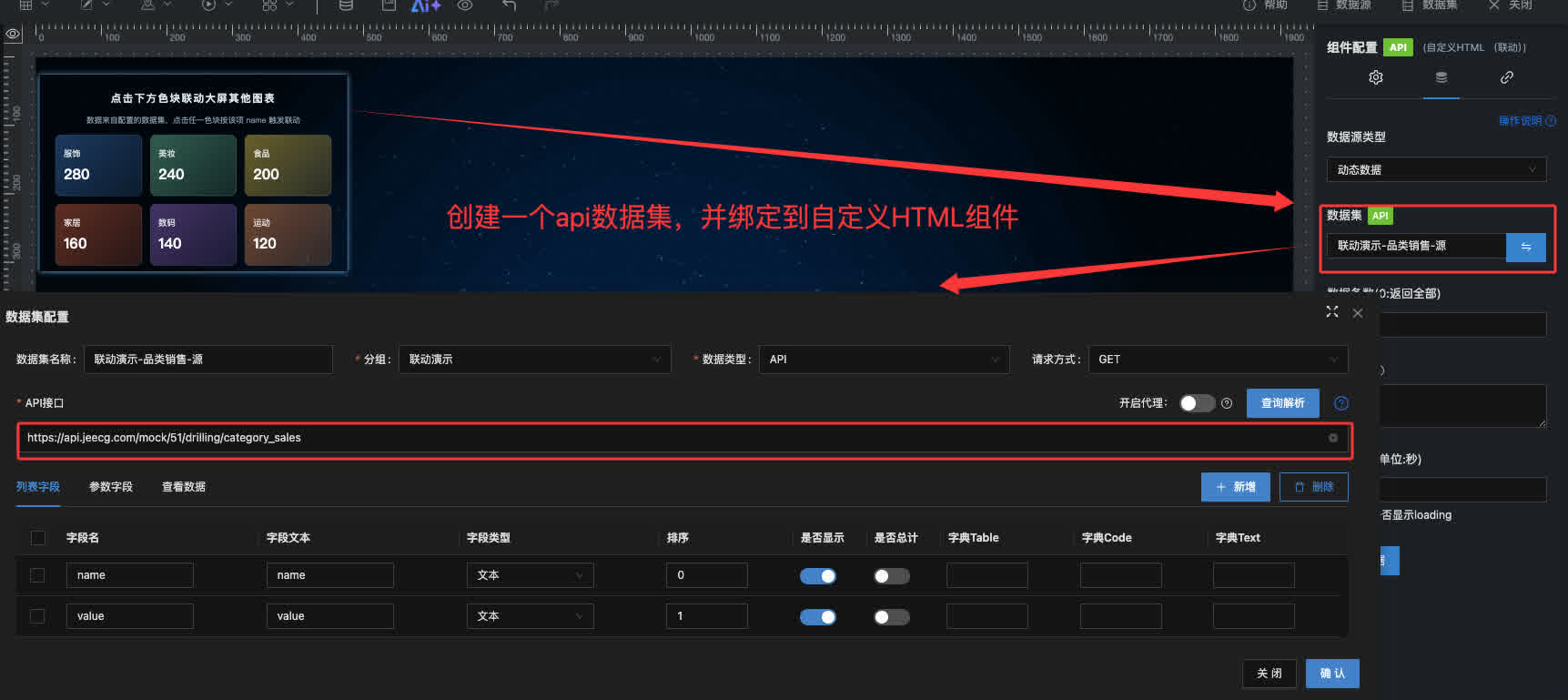
创建一个api数据集,并绑定到自定义HTML组件上。https://api.jeecg.com/mock/51/drilling/category_sales
步骤3:
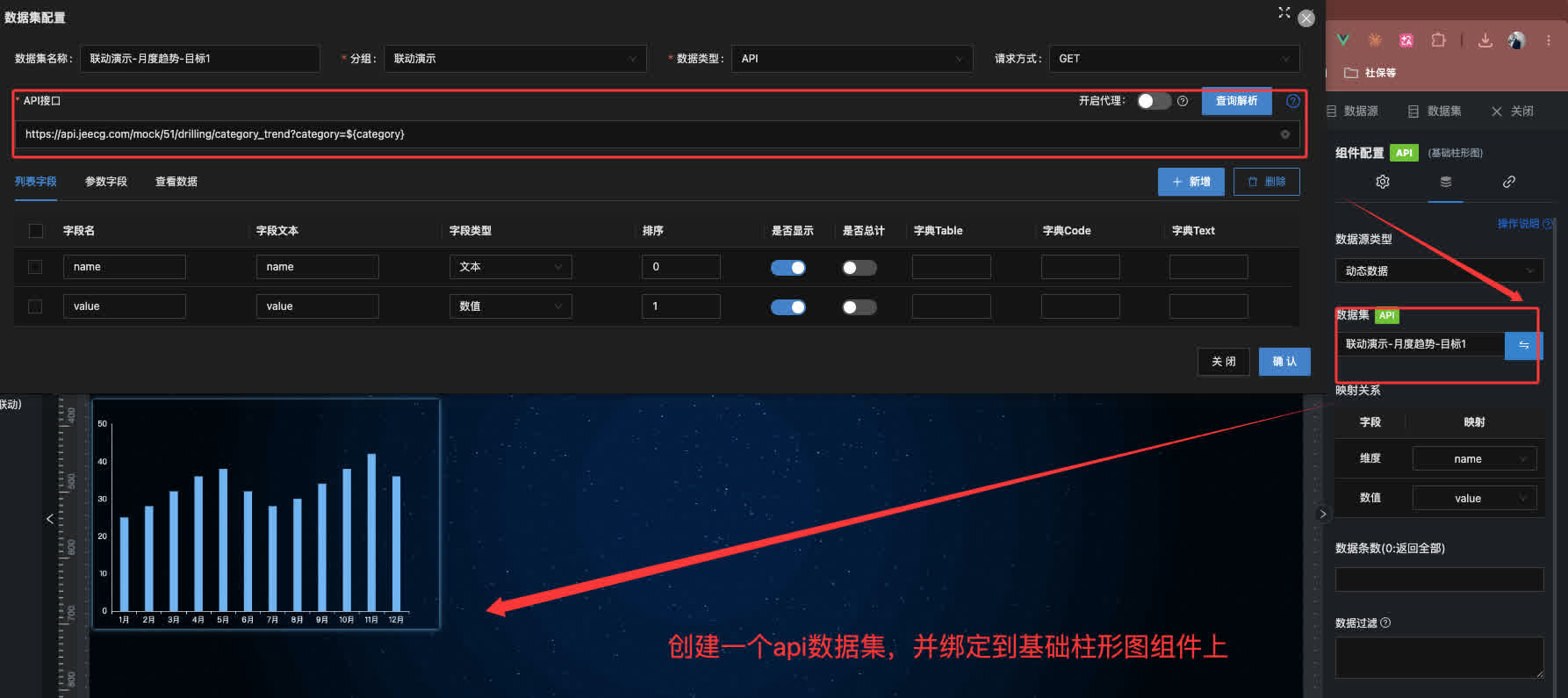
创建一个api数据集,并绑定到基础柱形图组件上。https://api.jeecg.com/mock/51/drilling/category_trend?category=${category}
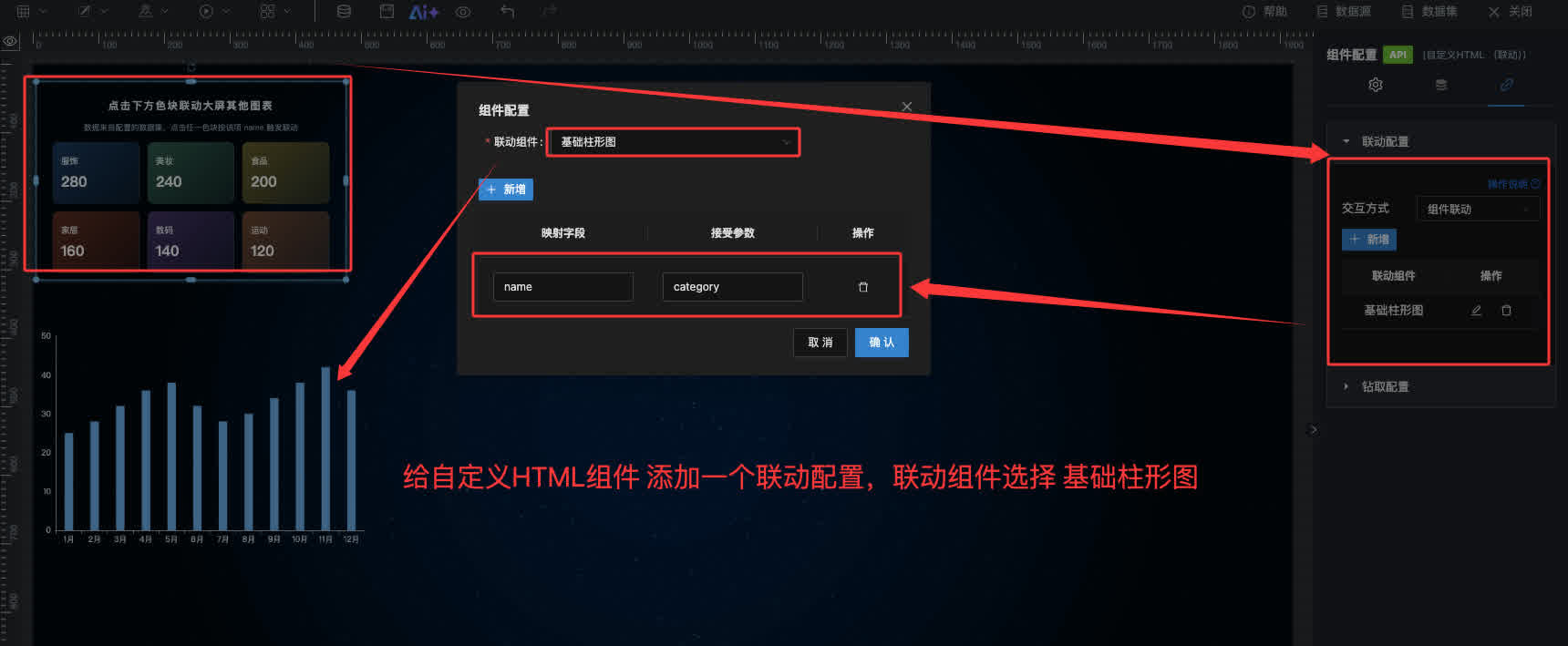
步骤4:
给自定义HTML组件添加一个联动配置,联动基础柱形图。name 映射 到 category。
场景 2:自定义HTML 钻取
效果
HTML 代码
<!doctype html>
<html lang="zh-CN">
  <head>
    <meta charset="UTF-8" />
    <title>联动示例</title>
    <style>
      * {
        margin: 0;
        padding: 0;
        box-sizing: border-box;
      }
      body {
        background: transparent;
        font-family: 'Microsoft YaHei', sans-serif;
        padding: 16px;
        color: #fff;
      }
      .title {
        text-align: center;
        font-size: 16px;
        font-weight: bold;
        letter-spacing: 2px;
        color: #e0e8f0;
        margin-bottom: 14px;
      }
      .tip {
        text-align: center;
        font-size: 12px;
        color: #8899aa;
        margin-bottom: 14px;
      }
      .grid {
        display: grid;
        grid-template-columns: repeat(3, 1fr);
        gap: 12px;
      }
      .cell {
        position: relative;
        border-radius: 10px;
        padding: 18px 12px;
        cursor: pointer;
        transition: all 0.25s;
        border: 1px solid rgba(255, 255, 255, 0.12);
        background: linear-gradient(135deg, rgba(50, 120, 200, 0.45), rgba(50, 120, 200, 0.18));
      }
      .cell:nth-child(2) {
        background: linear-gradient(135deg, rgba(80, 200, 160, 0.45), rgba(80, 200, 160, 0.18));
      }
      .cell:nth-child(3) {
        background: linear-gradient(135deg, rgba(232, 200, 64, 0.45), rgba(232, 200, 64, 0.18));
      }
      .cell:nth-child(4) {
        background: linear-gradient(135deg, rgba(224, 80, 56, 0.45), rgba(224, 80, 56, 0.18));
      }
      .cell:nth-child(5) {
        background: linear-gradient(135deg, rgba(160, 100, 220, 0.45), rgba(160, 100, 220, 0.18));
      }
      .cell:nth-child(6) {
        background: linear-gradient(135deg, rgba(255, 140, 80, 0.45), rgba(255, 140, 80, 0.18));
      }
      .cell:hover {
        transform: translateY(-2px);
        box-shadow: 0 6px 18px rgba(0, 0, 0, 0.25);
        border-color: rgba(255, 255, 255, 0.3);
      }
      .cell.active {
        border-color: #ffe066;
        box-shadow: 0 0 22px rgba(255, 224, 102, 0.55);
      }
      .cell-name {
        font-size: 13px;
        color: rgba(255, 255, 255, 0.85);
        margin-bottom: 8px;
      }
      .cell-value {
        font-size: 22px;
        font-weight: bold;
        color: #fff;
      }
      .cell-unit {
        font-size: 12px;
        font-weight: normal;
        color: rgba(255, 255, 255, 0.7);
        margin-left: 2px;
      }
      .empty {
        grid-column: 1/-1;
        text-align: center;
        color: #8899aa;
        padding: 24px;
        font-size: 13px;
      }
    </style>
  </head>
  <body>
    <div class="title">钻取</div>
    <div class="tip">数据来自配置的数据集,前两列分别作为名称和数值</div>
    <div class="grid" id="grid"><div class="empty">等待数据集返回数据...</div></div>
    <script>
      (function () {
        var grid = document.getElementById('grid');
        var current = null;
        function render(list) {
          grid.innerHTML = '';
          if (!list || !list.length) {
            grid.innerHTML = '<div class="empty">暂无数据</div>';
            return;
          }
          var keys = Object.keys(list[0] || {});
          var nameKey = keys[0],
            valueKey = keys[1];
          list.slice(0, 6).forEach(function (row) {
            var cell = document.createElement('div');
            cell.className = 'cell';
            cell.innerHTML =
              '<div class="cell-name">' +
              (row[nameKey] != null ? row[nameKey] : '--') +
              '</div><div class="cell-value">' +
              (row[valueKey] != null ? row[valueKey] : '--') +
              '</div>';
            cell.addEventListener('click', function () {
              if (current) current.classList.remove('active');
              cell.classList.add('active');
              current = cell;
              // 钻取方法
              window.JLink && window.JLink.drill(row);
            });
            grid.appendChild(cell);
          });
        }
        window.JLink && window.JLink.onData(render);
      })();
    </script>
  </body>
</html>
相关配置
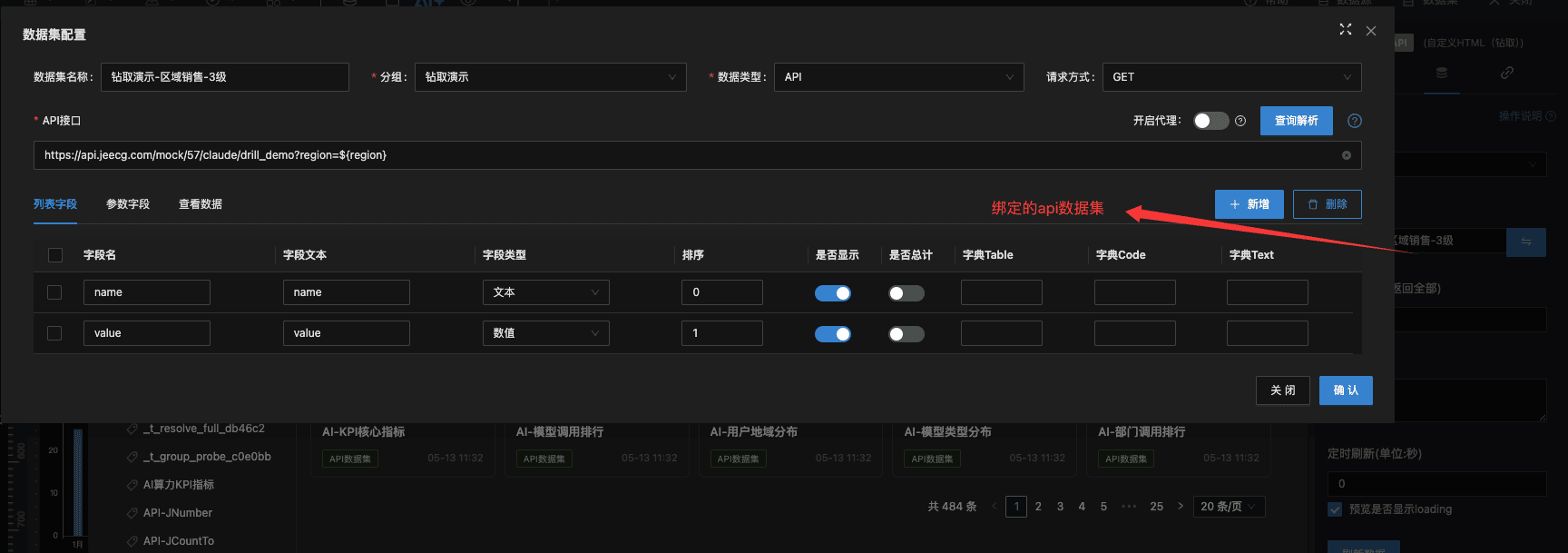
自定义HTML绑定的api数据集:https://api.jeecg.com/mock/51/drilling/drill_demo?region=${region}
 钻取配置
钻取配置
场景 3:自定义HTML 被大屏内其他组件联动
效果
HTML 代码
<!doctype html>
<html lang="zh-CN">
  <head>
    <meta charset="UTF-8" />
    <title>被联动示例</title>
    <style>
      * {
        margin: 0;
        padding: 0;
        box-sizing: border-box;
      }
      body {
        background: transparent;
        font-family: 'Microsoft YaHei', sans-serif;
        padding: 16px;
        color: #fff;
      }
      .title {
        text-align: center;
        font-size: 16px;
        font-weight: bold;
        letter-spacing: 2px;
        color: #e0e8f0;
        margin-bottom: 14px;
      }
      .tip {
        text-align: center;
        font-size: 12px;
        color: #8899aa;
        margin-bottom: 14px;
      }
      .grid {
        display: grid;
        grid-template-columns: repeat(3, 1fr);
        gap: 12px;
      }
      .cell {
        position: relative;
        border-radius: 10px;
        padding: 18px 12px;
        cursor: pointer;
        transition: all 0.25s;
        border: 1px solid rgba(255, 255, 255, 0.12);
        background: linear-gradient(135deg, rgba(50, 120, 200, 0.45), rgba(50, 120, 200, 0.18));
      }
      .cell:nth-child(2) {
        background: linear-gradient(135deg, rgba(80, 200, 160, 0.45), rgba(80, 200, 160, 0.18));
      }
      .cell:nth-child(3) {
        background: linear-gradient(135deg, rgba(232, 200, 64, 0.45), rgba(232, 200, 64, 0.18));
      }
      .cell:nth-child(4) {
        background: linear-gradient(135deg, rgba(224, 80, 56, 0.45), rgba(224, 80, 56, 0.18));
      }
      .cell:nth-child(5) {
        background: linear-gradient(135deg, rgba(160, 100, 220, 0.45), rgba(160, 100, 220, 0.18));
      }
      .cell:nth-child(6) {
        background: linear-gradient(135deg, rgba(255, 140, 80, 0.45), rgba(255, 140, 80, 0.18));
      }
      .cell:hover {
        transform: translateY(-2px);
        box-shadow: 0 6px 18px rgba(0, 0, 0, 0.25);
        border-color: rgba(255, 255, 255, 0.3);
      }
      .cell.active {
        border-color: #ffe066;
        box-shadow: 0 0 22px rgba(255, 224, 102, 0.55);
      }
      .cell-name {
        font-size: 13px;
        color: rgba(255, 255, 255, 0.85);
        margin-bottom: 8px;
      }
      .cell-value {
        font-size: 22px;
        font-weight: bold;
        color: #fff;
      }
      .cell-unit {
        font-size: 12px;
        font-weight: normal;
        color: rgba(255, 255, 255, 0.7);
        margin-left: 2px;
      }
      .empty {
        grid-column: 1/-1;
        text-align: center;
        color: #8899aa;
        padding: 24px;
        font-size: 13px;
      }
    </style>
  </head>
  <body>
    <div class="title">被大屏内其他组件联动</div>
    <div class="tip">数据来自配置的数据集,前两列分别作为名称和数值</div>
    <div class="grid" id="grid"><div class="empty">等待数据集返回数据...</div></div>
    <script>
      (function () {
        var grid = document.getElementById('grid');
        var current = null;
        function render(list) {
          grid.innerHTML = '';
          if (!list || !list.length) {
            grid.innerHTML = '<div class="empty">暂无数据</div>';
            return;
          }
          var keys = Object.keys(list[0] || {});
          var nameKey = keys[0],
            valueKey = keys[1];
          list.slice(0, 6).forEach(function (row) {
            var cell = document.createElement('div');
            cell.className = 'cell';
            cell.innerHTML =
              '<div class="cell-name">' +
              (row[nameKey] != null ? row[nameKey] : '--') +
              '</div><div class="cell-value">' +
              (row[valueKey] != null ? row[valueKey] : '--') +
              '</div>';
            grid.appendChild(cell);
          });
        }
        // 接口刷新会触发
        window.JLink && window.JLink.onData(render);
      })();
    </script>
  </body>
</html>
相关配置
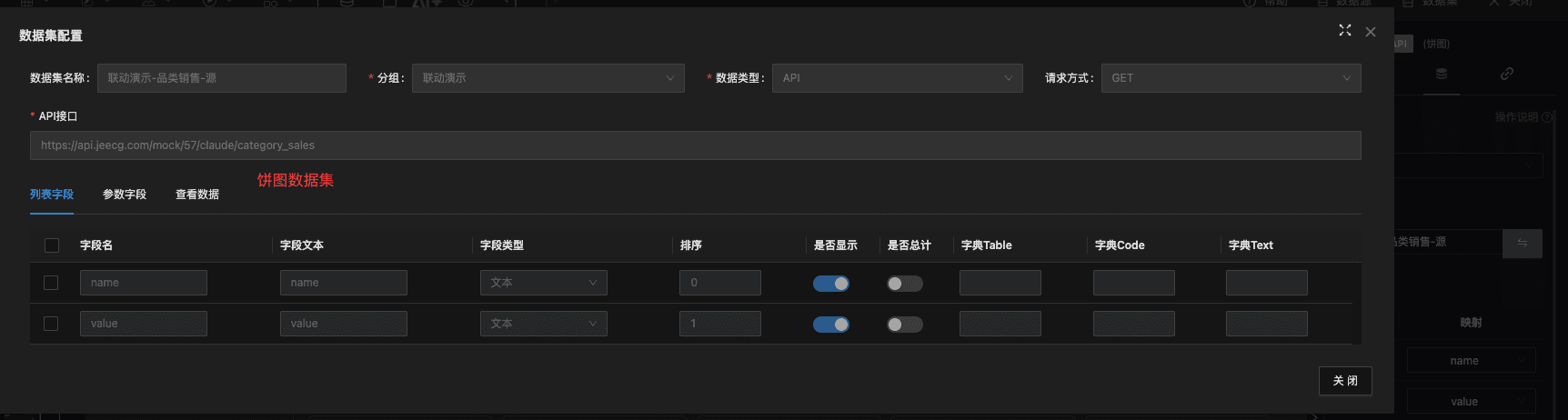
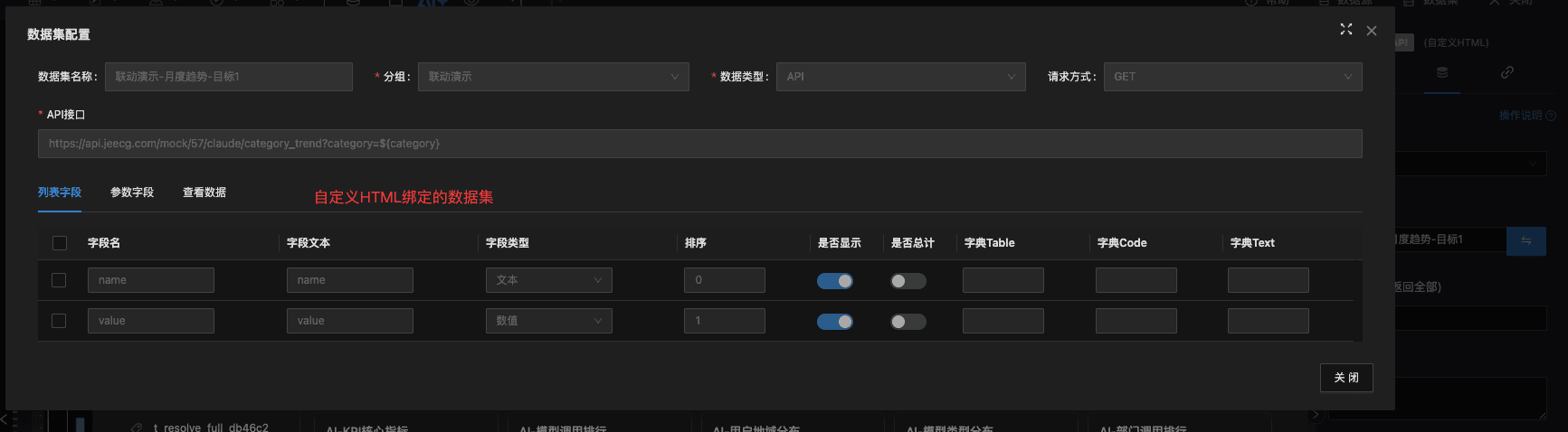
饼图绑定的api数据集:https://api.jeecg.com/mock/51/drilling/category_sales
 自定义HTML绑定的api数据集:https://api.jeecg.com/mock/51/drilling/category_trend?category=${category}
场景 4:操控其他组件(综合示例)
显示、隐藏、移动、更改尺寸、一次修改多项、修改主题、获取组件的所有配置、重置为初始数据
效果
HTML 代码
<!DOCTYPE html>
<html><head><meta charset="UTF-8">
<style>
  body { background: transparent; padding: 16px; color:#fff; font-family:'Microsoft YaHei'; }
  .group { margin-bottom: 12px; }
  .label { font-size: 12px; color: #8899aa; margin-bottom: 6px; }
  .row { display: flex; gap: 8px; flex-wrap: wrap; }
  button {
    padding: 6px 14px; border-radius: 4px; cursor: pointer; border: 1px solid rgba(24,144,255,.4);
    background: rgba(24,144,255,.2); color: #fff; font-size: 13px;
  }
  button:hover { background: rgba(24,144,255,.5); }
  button.warn { border-color: rgba(255,170,80,.5); background: rgba(255,170,80,.2); }
  button.warn:hover { background: rgba(255,170,80,.5); }
  button.success { border-color: rgba(80,200,160,.5); background: rgba(80,200,160,.2); }
  button.success:hover { background: rgba(80,200,160,.5); }
  pre { background: rgba(0,0,0,.3); padding: 10px; border-radius: 4px; font-size: 11px; max-height: 180px; overflow: auto; margin-top: 10px; }
  input { width: 100%; padding: 6px; margin-bottom: 12px; background: rgba(0,0,0,.3); border: 1px solid rgba(255,255,255,.2); color: #fff; border-radius: 4px; }
</style></head>
<body>
  <!-- 默认填好面积图 id;想操控别的组件改这里即可 -->
  <input type="text" id="targetId" value="30e57f75-4e77-4c14-a5cc-5debe8aa0067" placeholder="目标组件 id" />

  <div class="group">
    <div class="label">显隐</div>
    <div class="row">
      <button onclick="hide()">隐藏</button>
      <button onclick="show()">显示</button>
    </div>
  </div>

  <div class="group">
    <div class="label">位置 / 尺寸</div>
    <div class="row">
      <button onclick="move()">移到 (700, 500)</button>
      <button onclick="resize()">尺寸 600x400</button>
    </div>
  </div>

  <div class="group">
    <div class="label">配置(深合并 config)</div>
    <div class="row">
      <button onclick="setTitle()">改标题</button>
      <button onclick="batchUpdate()">一次改多项</button>
    </div>
  </div>

  <div class="group">
    <div class="label">数据 / 主题(新增)</div>
    <div class="row">
      <button class="success" onclick="randomData()">随机数据</button>
      <button class="success" onclick="nextTheme()">切换主题色</button>
      <button class="warn" onclick="reload()">重置为初始数据</button>
    </div>
  </div>

  <div class="group">
    <div class="label">读取(get)</div>
    <div class="row">
      <button onclick="readState()">读取目标状态</button>
    </div>
    <pre id="output">点击「读取目标状态」查看 JLink.get 返回...</pre>
  </div>

  <script>
    function id() { return document.getElementById('targetId').value.trim(); }

    // ===== 原有 ===== //
    function hide()   { JLink.hide(id()); }
    function show()   { JLink.show(id()); }
    function move()   { JLink.move(id(), 700, 500); }
    function resize() { JLink.resize(id(), 600, 400); }

    function setTitle() {
      JLink.setConfig(id(), {
        option: { title: { text: '新标题 @' + new Date().toLocaleTimeString() } }
      });
    }

    function batchUpdate() {
      JLink.update(id(), {
        visible: true,
        x: 640, y: 520,
        w: 550, h: 380,
        config: { option: { title: { text: '批量更新' } } }
      });
    }

    async function readState() {
      try {
        const comp = await JLink.get(id());
        document.getElementById('output').textContent = JSON.stringify(comp, null, 2);
      } catch (e) {
        document.getElementById('output').textContent = '错误:' + e.message;
      }
    }

    // ===== 新增:随机数据 ===== //
    function randomData() {
      var brands = ['苹果', '香蕉', '梨子', '橘子', '榴莲'];
      var rows = brands.map(function (b) {
        return { name: b, value: Math.floor(Math.random() * 900 + 100) };
      });
      JLink.setData(id(), rows);
    }

    // ===== 新增:切换主题色(点一下换一组配色) ===== //
    var THEMES = [
      [{color:'#5470c6', color1:'#5470c6'}, {color:'#91cc75', color1:'#91cc75'}, {color:'#fac858', color1:'#fac858'}, {color:'#ee6666', color1:'#ee6666'}, {color:'#73c0de', color1:'#73c0de'}],   // 经典
      [{color:'#ff7e67', color1:'#ff7e67'}, {color:'#feca57', color1:'#feca57'}, {color:'#48dbfb', color1:'#48dbfb'}, {color:'#1dd1a1', color1:'#1dd1a1'}, {color:'#5f27cd', color1:'#5f27cd'}],   // 鲜亮
      [{color:'#1abc9c', color1:'#1abc9c'}, {color:'#3498db', color1:'#3498db'}, {color:'#9b59b6', color1:'#9b59b6'}, {color:'#34495e', color1:'#34495e'}, {color:'#16a085', color1:'#16a085'}],   // 冷调
      [{color:'#e74c3c', color1:'#e74c3c'}, {color:'#f39c12', color1:'#f39c12'}, {color:'#d35400', color1:'#d35400'}, {color:'#c0392b', color1:'#c0392b'}, {color:'#7f8c8d', color1:'#7f8c8d'}],   // 暖橙
      [{color:'#26de81', color1:'#26de81'}, {color:'#2bcbba', color1:'#2bcbba'}, {color:'#45aaf2', color1:'#45aaf2'}, {color:'#a55eea', color1:'#a55eea'}, {color:'#fd9644', color1:'#fd9644'}]    // 清新
    ];
    var themeIdx = 0;
    function nextTheme() {
      themeIdx = (themeIdx + 1) % THEMES.length;
      JLink.setConfig(id(), {
        option: { customColor: THEMES[themeIdx] }
      });
    }

    // ===== 新增:重置数据(重新查询数据集) ===== //
    function reload() { JLink.reload(id()); }
  </script>
</body></html>
说明:把 HTML 内 targetId 改成大屏中任一组件的 id(属性面板的「位置/尺寸」区可见),即可看到所有操控 API 的实际效果。
五、相关文档
- 大屏嵌入到其他系统(与本文反向场景):embedToOther.md
- 大屏组件联动配置:complink.md